





How to Login to FTMO Trading Platforms

For those of you who are new to trading on our platforms, here is a tutorial on how to log in, including the most common issues you may encounter in the process. To log in successfully, please follow the instructions precisely.
MetaTrader 5
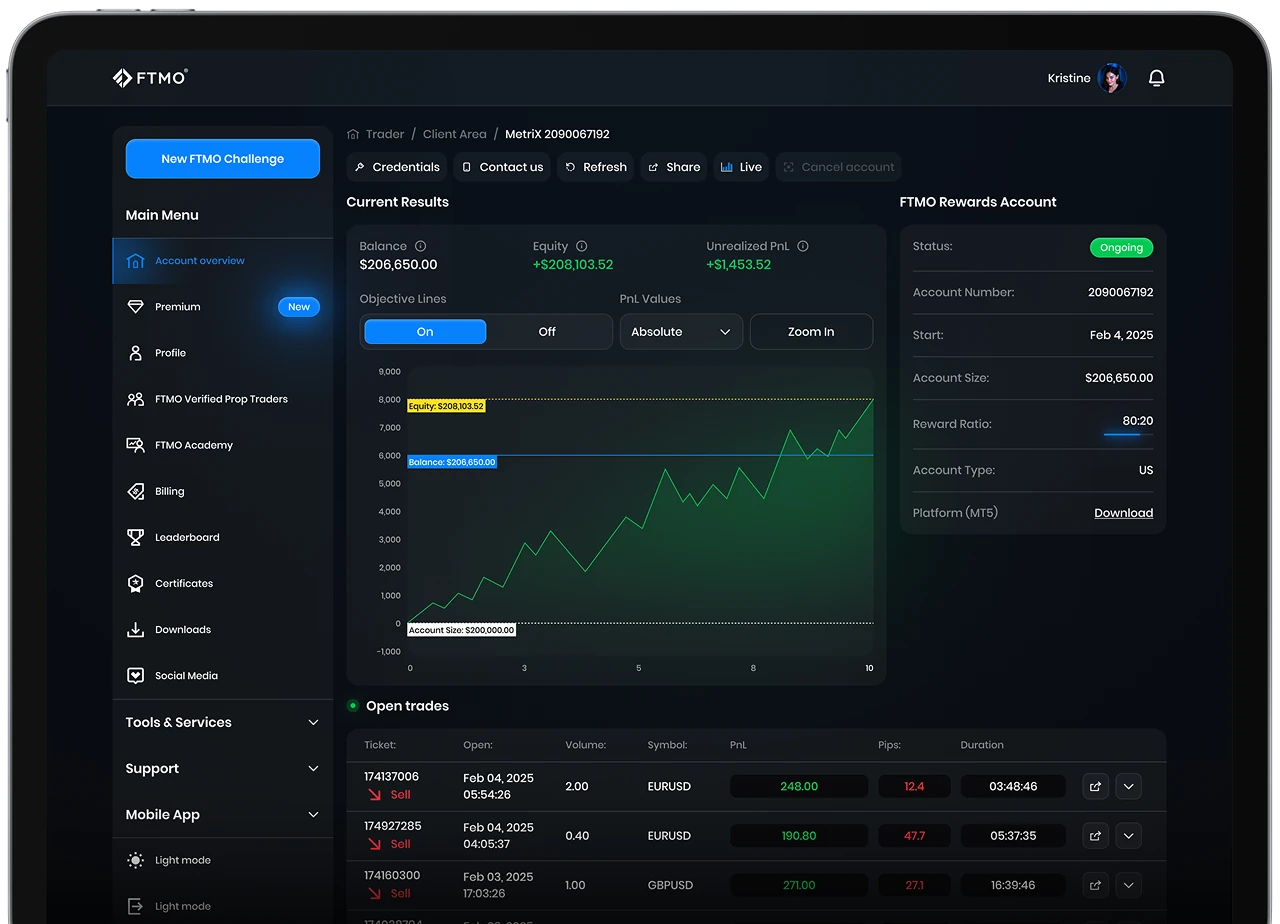
Your login credentials, link to download the platform, and a link to open its web version can be found in your Client Area, in the Credentials section within Account MetriX.
Common issues:
- Using a read-only password if you want to trade. Trading-related actions require the master password. If you are logged in with a read-only password, log out and log in again with the master password. Both passwords are visible in the Credentials section.
- Using an incorrect server. Please ensure that you use the correct FTMO server. The server must be exactly the same as in your Credentials section.
Desktop
The login guide is also available as a video on our YouTube channel.
If you are logging in to your first account, a pop-up window may appear after you open the desktop app. Close it and continue with step 2.
- Open the MetaTrader 5 application
- Click File in the top left corner
- Click Open an Account
- Type OANDA Corporation into the search bar, then click Find your company
- Choose OANDA Corporation and continue to the next page
- Choose Connect with an existing trade account
- Log in with the information provided in your Credentials section:
- Login number
- Password
- Master password to trade
- Read-only password to only visit the platform
- Server (do not type the server, but choose it from available options)
- Finish the login process
Mobile (iOS)
If you are logging in to your first account, a pop-up window will appear after you open the mobile app. Close it and continue with step 4.
- Open the MetaTrader 5 application
- Click Settings in the bottom right corner
- Click New Account
- Type OANDA Corporation into a search bar and choose OANDA Corporation
- Log in with the information provided in your Credentials section:
- Login number
- Password
- Master password to trade
- Read-only password to only visit the platform
- Server
- Finish the login process
Mobile (Android)
If you are logging in to your first account, a pop-up window will appear after you open the mobile app. Close it and continue with step 5.
- Open the MetaTrader 5 application
- Click the Menu in the top left corner
- Click Get Started / Manage accounts button
- Click the Plus button
- Type OANDA Corporation into a search bar and choose OANDA Corporation
- Log in with the information provided in your Credentials section:
- Login number
- Password
- Master password to trade
- Read-only password to only visit the platform
- Server
- Finish the login process
Web
- Open the web MetaTrader 5 using the link button in the Credentials section of the specific account
- Log in with the information provided in your Credentials section:
- Login number
- Password
- Master password to trade
- Read-only password to only visit the platform
- The server is already chosen automatically based on the Credentials section
- Finish the login process
TradingView
The first step in the login process is to create a TradingView registration or log in to one you already have.
Once done, you can proceed with the guide for your specific device, included below in this article.
Before doing so, please also read this important information:
- You can use any of your TradingView registrations, regardless of the email address used.
- By connecting FTMO to TradingView, all FTMO simulated trading accounts with the TradingView platform will be automatically connected.
- The trading account(s) will not be synced to any of your other devices with the same TradingView registration. If you plan to use multiple devices, you can, but you must connect to FTMO on each device individually.
- If you forgot your password for your TradingView registration, use the “Forgot password” option on the TradingView sign-in page.
Desktop + Web
The login guide is also available as a video on our YouTube channel.
- Open the TradingView Charts
- Click Trade in the top right corner
- Find OANDA and click on it
- Click Connect
- Click Continue with FTMO Profile
- A pop-up requiring you to log in to the FTMO Client Area may appear. If it does, log in to your FTMO registration as usual.
To find the Simulated Assets offered by FTMO, open the symbol search window (e.g., by clicking the search bar in the top left corner). Once opened, you will see a search bar and a list of instrument classes below. Choose the option on the right side, titled “OANDA”; this will display all Simulated Assets tradable with FTMO.
Mobile
The login guide is also available as a video on our YouTube channel.
- Open the TradingView application
- Navigate to the Chart page in the bottom navigation menu
- Click the “three dots” button in the bottom bar
- Click Trade with your broker
- Find OANDA and click on it
- Click Connect
- Click Continue with FTMO Profile
- A pop-up requiring you to log in to the FTMO Client Area may appear. If it does, log in to your FTMO registration as usual.
To find the Simulated Assets offered by FTMO, open the symbols search window (e.g., by navigating to the watchlist in the bottom menu and clicking the “plus” button in the top-right corner). Once opened, you will see a search bar and a list of instrument classes below. Choose the option on the left, with the “OANDA” logo. This will display all Simulated Assets tradable with FTMO.
All information provided herein is intended solely for educational purposes related to trading on financial markets and does not constitute investment advice or serve in any way as a specific investment recommendation. Please read the full disclosure here.













- As many Free Trials as you need
- Up to a simulated $200,000 FTMO Rewards Account
- Performance-based rewards




Worldwide Reviews